
How can I extend a missed deadline?
If a trainee has missed a course deadline, you can extend their deadline directly from the Users page without modifying the course for other trainees.
Extend a Deadline for One Trainee
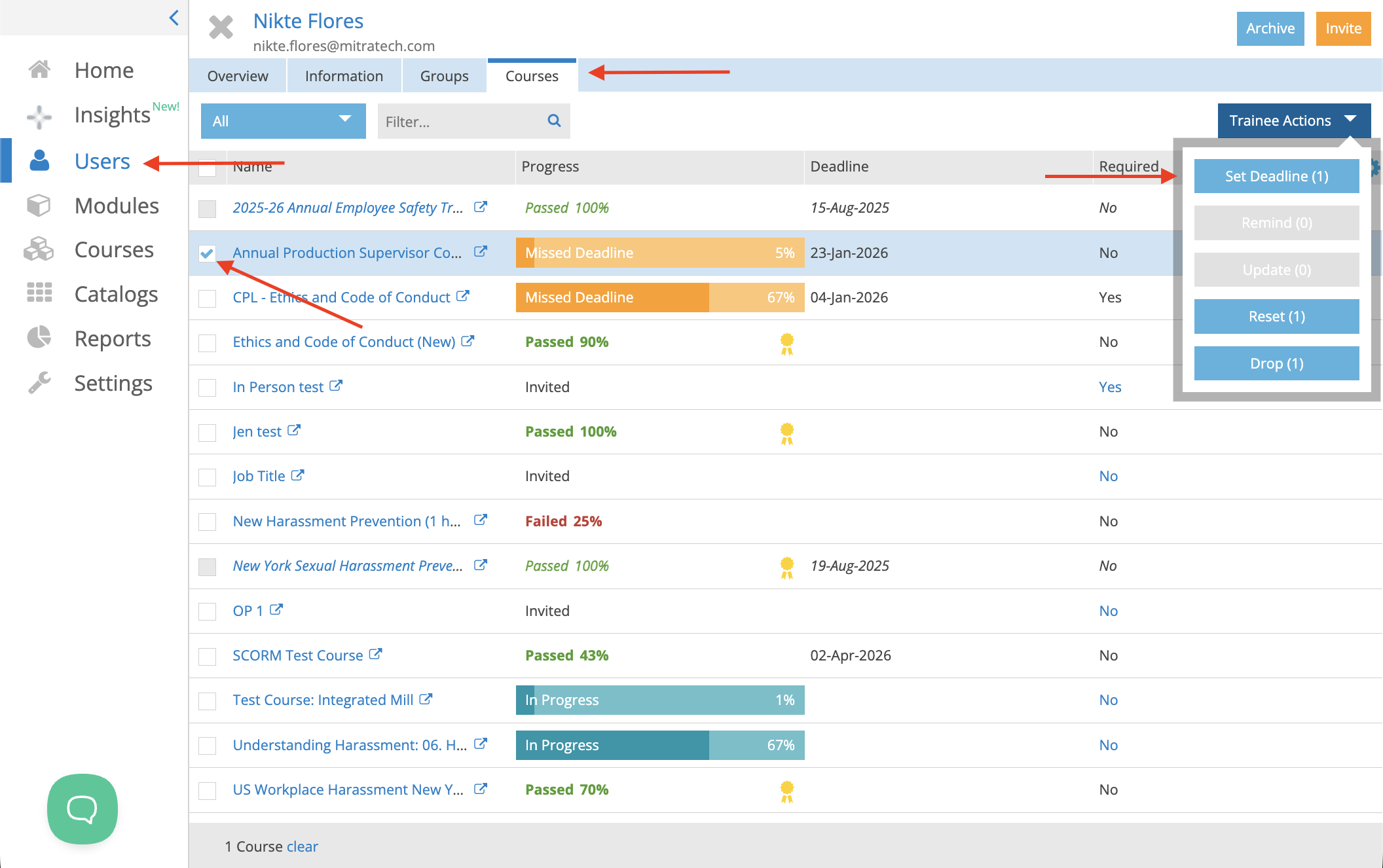
- From the left navigation menu, click Users.
- Select the trainee whose deadline you want to extend.
- Open the Courses tab.
- Select the course with the Missed Deadline status.
- Click Trainee Actions and select Set Deadline.
- Choose the new deadline date in the calendar.
- Save your changes.
The trainee will regain access to the course until the new deadline.
Extend Deadlines for Multiple Trainees
If multiple trainees need additional time:
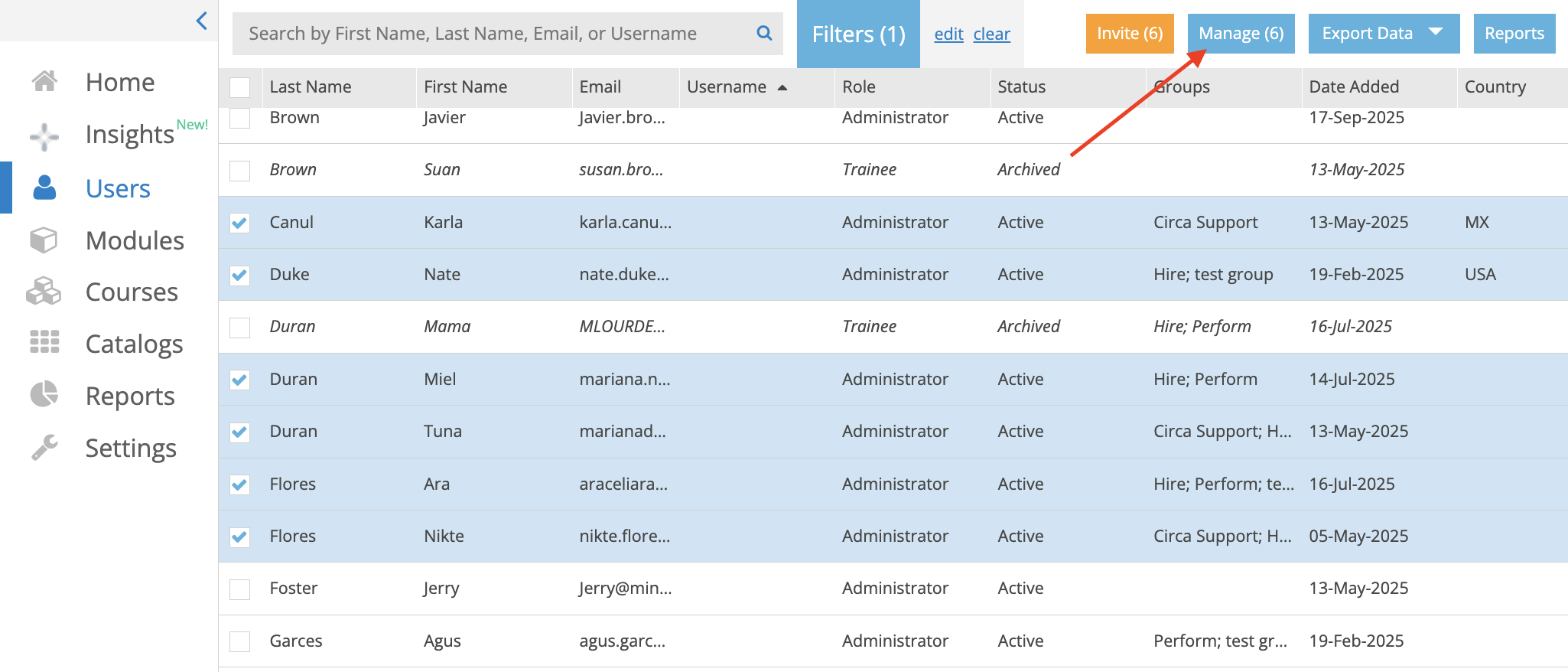
- From the Users page, select the trainees whose deadlines you want to extend.
- Click Manage.
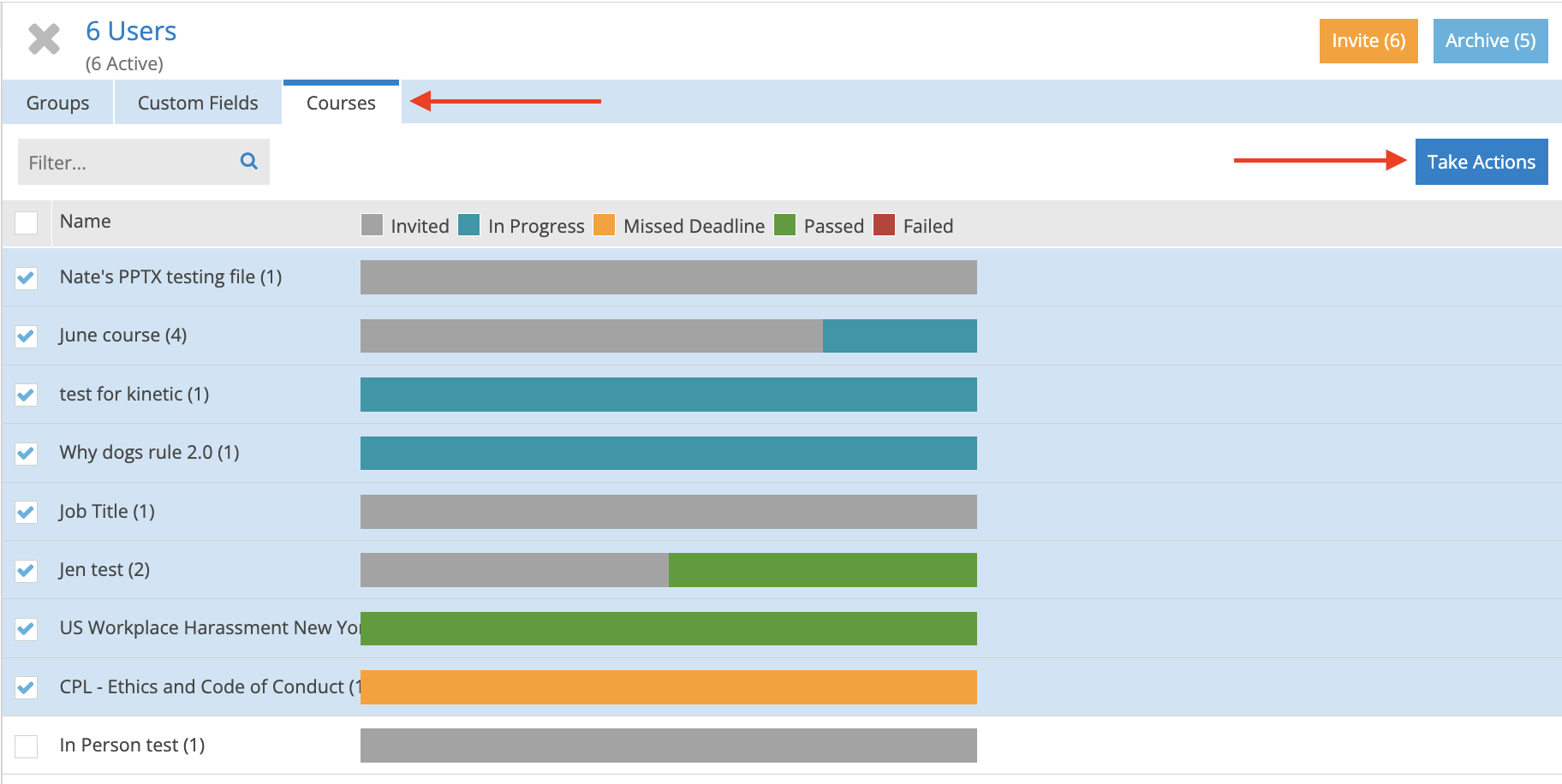
- Open the Courses tab.
- Select the course or courses you want to update.
- Click Take Actions.
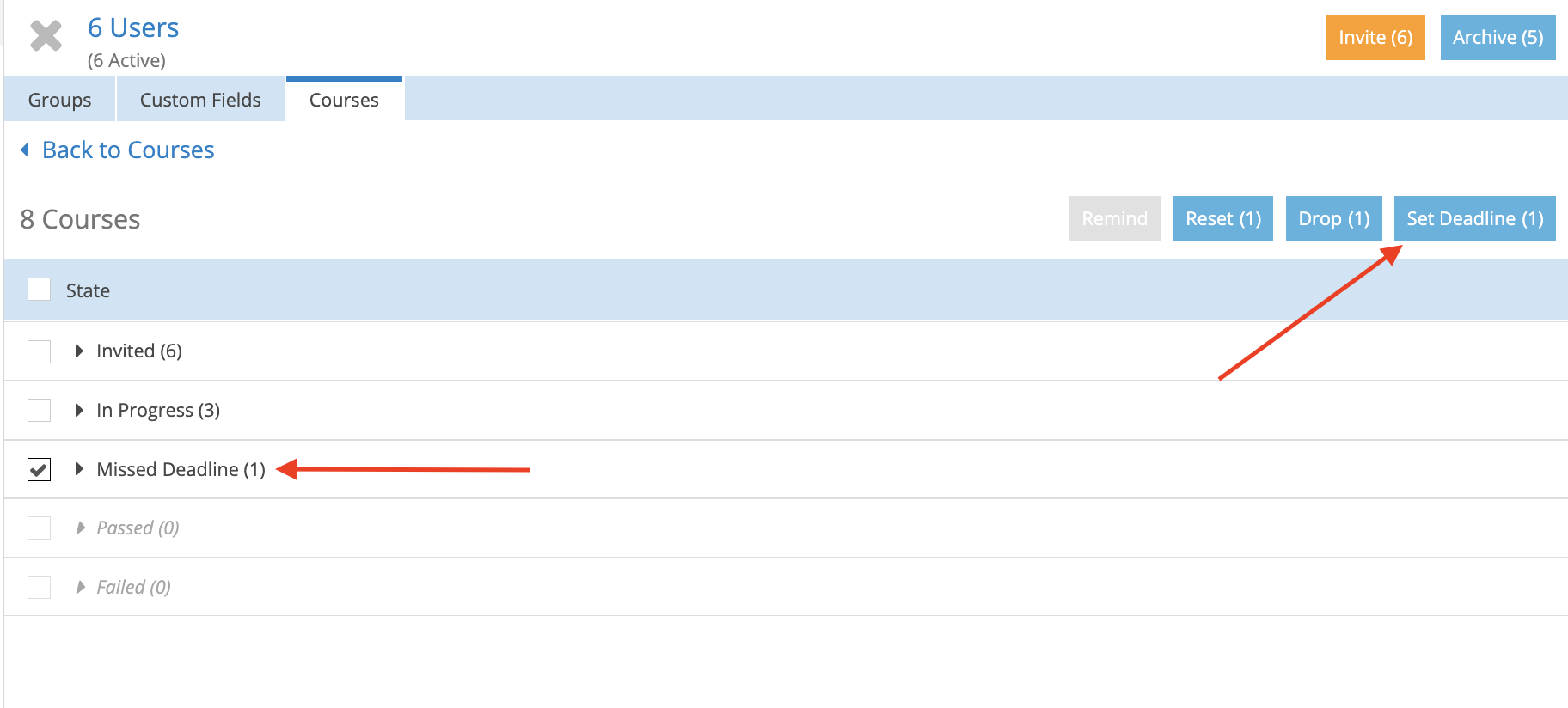
- Select the Missed Deadline status.
- Click Set Deadline.
- Choose the new deadline date and confirm the update.
The selected trainees will receive the new deadline for the chosen course(s).
Important Notes
- Extending a deadline restores access only for the selected trainee(s). It does not change the course deadline for everyone else.
- Trainees who miss a deadline are reported with a Missed Deadline status until a new deadline is assigned.
- Course deadlines take effect at 12:00 AM Pacific Time (PT) on the selected date. If you want trainees to have the entire selected day to complete the course, set the deadline for the following day.