
How to place content in the middle of a quiz
When creating a quiz and adding content to a Module, you can rearrange the order of your content (such as PowerPoint presentations, Word documents, videos, and other content types) within the quiz.
Open the Arrange Content Window
- From the Modules section, select the desired Module.
- Open the Content tab.
- Click Add and Arrange Content.
Once the Arrange window opens, you can rearrange your content using either of the following methods.

Option 1: Rearrange Content Using Slide Detail
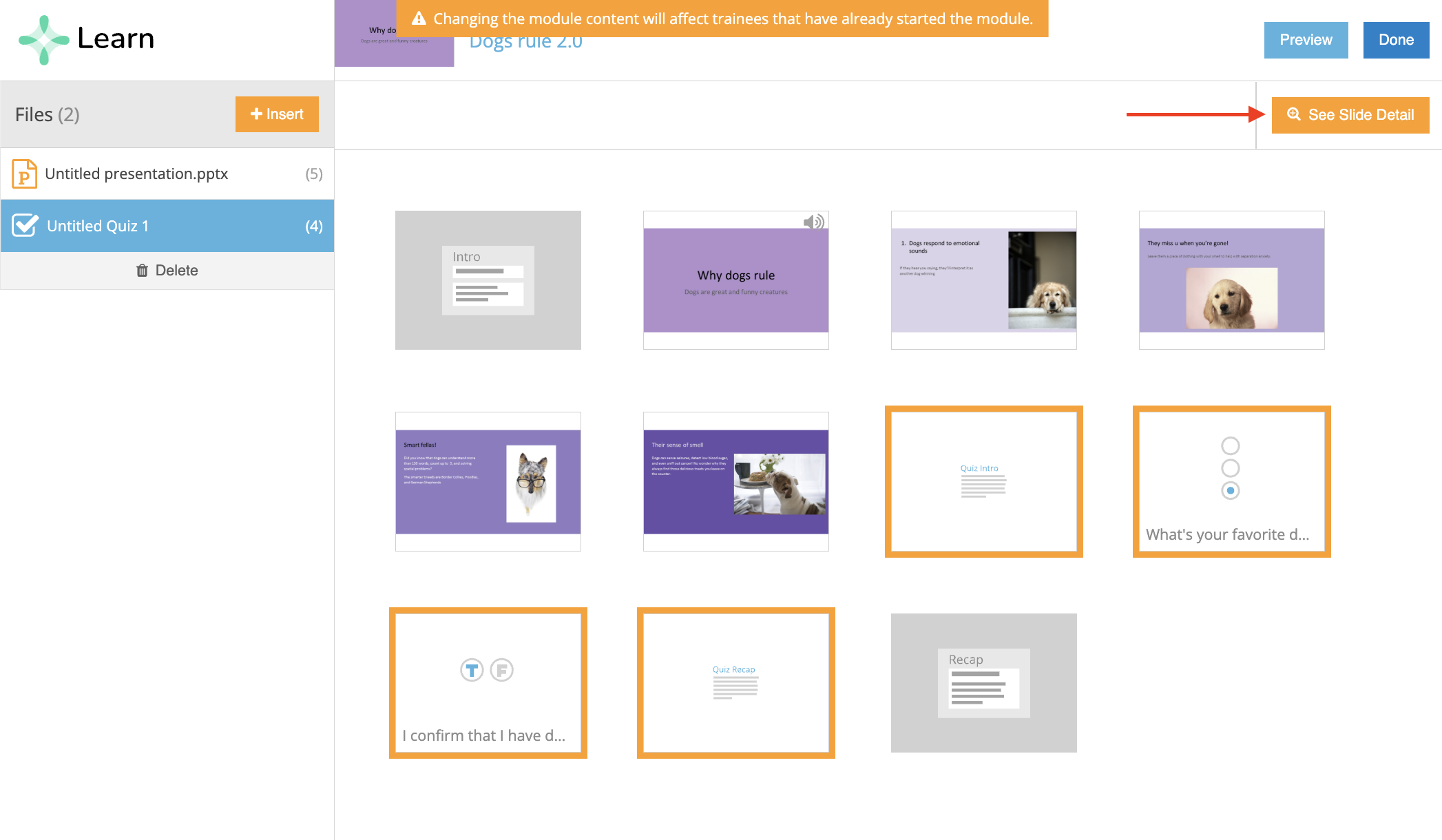
- Click See Slide Detail.
- All individual slides will appear on the left side of the page.
-
Click and drag the slide you want to move to its desired location within the quiz.

Option 2: Rearrange Content Using the "See All Slides" View
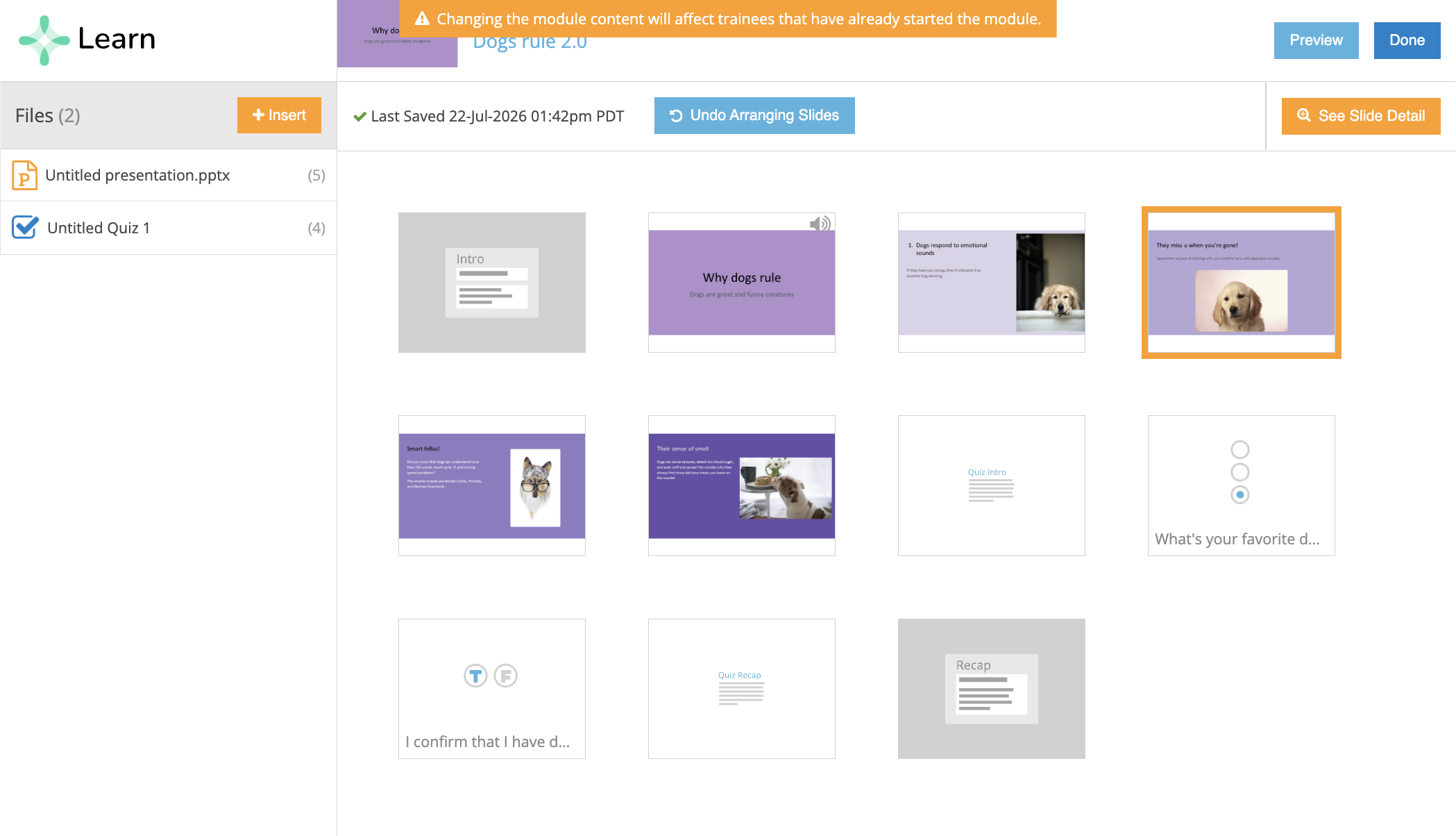
- Stay in or switch to the See All Slides view.
- In this view:
- The left side displays a list of the files in your Module.
- The right side displays thumbnail previews of each slide.
- Select the slide you want to move.
-
Drag the slide to the desired location within the quiz.
Important Notes
- There is no limit to the number of content slides you can mix with quiz questions.
- If you move a quiz slide, the entire quiz moves with it.
- If you want to intersperse content slides between quiz questions, move the content slides into the desired location within the group of quiz slides rather than moving the quiz itself.