
Getting Started for Trainees
Welcome to Trakstar Learn! This guide walks you through how to access your courses, navigate the learning experience, and complete your training.
If you have questions about the course content, contact the trainer listed in the course or your organization's learning team.
If you need help logging in or accessing your account, contact the Trakstar Learn Support team at learn@trakstar.com.
Access Your Course
The two most common ways to access a course are:
- Through an email invitation
- By self-enrolling
Access a Course from an Email Invitation
If you've been invited to a course by email:
- Open the invitation email.
- Review the course details, including:
- Trainer
- Course name
- Course modules
- Due date (if applicable)
- Click Get Started.

If this is your first time accessing this Learn site, you'll be prompted to create a password.
Important: Save your password for future logins.
Self-Enroll in a Course
Some organizations allow learners to enroll in courses through:
- A Course Catalog
- Trakstar Academy
After selecting a course, click Get Started to begin enrollment.
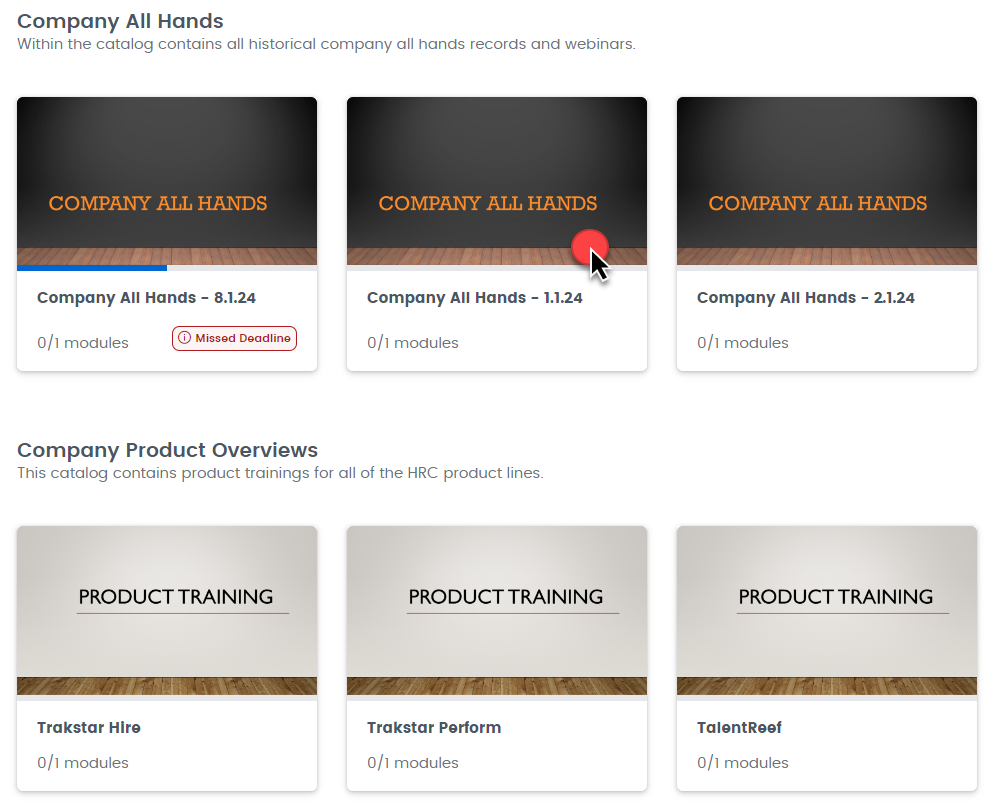
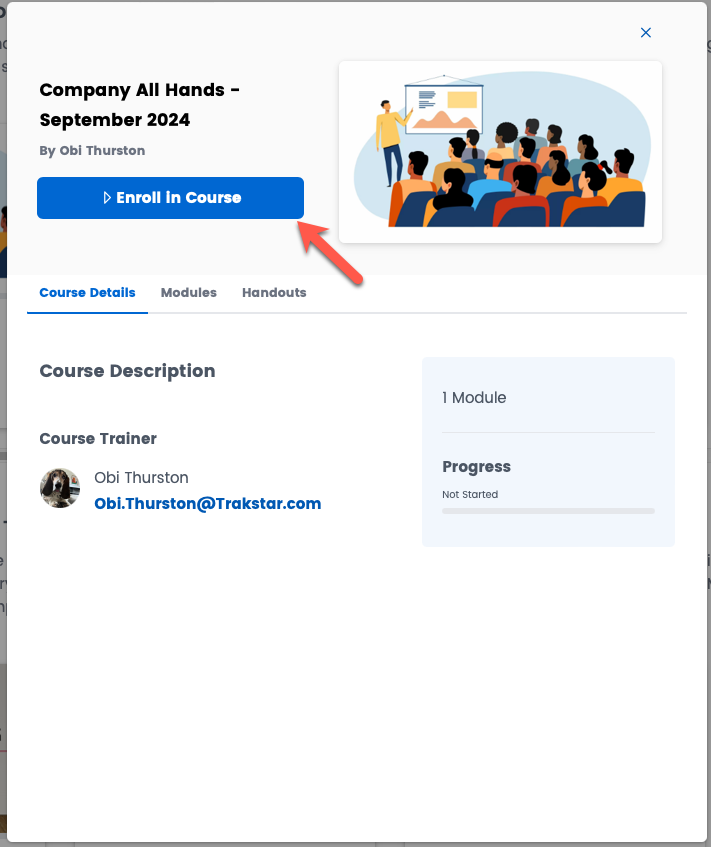
If this is your first time accessing this Learn site, you'll be prompted to create a password.
Important: Each Trakstar Learn site has its own login credentials.
For example, if you've created an account for Trakstar Academy, you'll still need to create a separate password for your organization's Learn site.
These are separate accounts and cannot be used interchangeably.
View Your Course
After signing in, your course will open.
The introduction page may include information such as:
- Course title
- Last updated date
- Course description
- Passing score

Navigate Through a Course
The navigation bar at the bottom of the course allows you to move through your training.
It includes:
- Course Drawer (three-line menu) in the lower-left corner
- Slide counter in the center showing your current slide number
- Next arrow in the lower-right corner to advance through the course
Use the Course Drawer
Select the Course Drawer to access additional navigation options.
The Course Drawer includes:
- Slide Overview (nine-square icon) to preview course slides
- Home icon to return to your trainee dashboard
- Logout icon to sign out
- Close icon to close the Course Drawer


Complete Course Content
Courses may include a variety of learning activities, including:
- Videos
- Quizzes
- Surveys
- Interactive activities
- PDFs
- Informational slides
Each content type may have its own controls and completion requirements.
Watch Videos
When a course includes video content, you'll see video playback controls such as:
- Play/Pause
- Volume
- Full Screen
- Video duration
Depending on how the course was configured, you may not be able to:
- Skip ahead
- Change the playback speed
After watching the video, click the Next arrow to continue.
Complete Interactive Activities
Some courses include interactive elements that require you to complete an activity before moving forward.
After completing the required interaction, click the Next arrow to continue.

Complete Quizzes
If your course includes quizzes, you'll see information about:
- The total number of questions
- The number of attempts allowed

After submitting an answer:
- Correct answers display a green Correct indicator.
- Incorrect answers display a red Incorrect indicator.
If multiple attempts are allowed, you'll have the opportunity to try again.
If Show Correct Answers has been enabled by your administrator, you can review the correct answer after submitting your response.


Return to Your Trainee Dashboard
You can return to your dashboard at any time by selecting the Home icon in the Course Drawer.
From the trainee dashboard, you can view:
- Assigned courses
- Completed courses
- Available self-enrollment courses (if enabled)
Questions? Feel free to reach out at any time at learn@trakstar.com! 🙂